
Login with FEIDE

We recommend accessing DSW using your FEIDE account.
If you do not have a FEIDE account, you can register for an account with DSW directly.
Welcome Screen

The DSW welcome screen shows options for your first time logging in. The sidebar has links to relevant resources, walkthrough videos, and a user guide. Your sidebar might not display Knowledge Models and Document Templates, depending on your role, but it will show your Projects. Projects are where your DMPs are stored.
We recommend that you create a DMP using the HTS exemplar by following the link in the sidebar "Start from exemplar DMPs", highlighted in green in the image. You can also choose to start from a blank DMP, but this will not have any of our recommendations or guidance included.
DMP Project Creation

Once you click the "start from exemplar DMPs" link, you can create a new DMP using the HTS exemplar template
- Enter a unique Name for your project and data management plan
- Select "High-throughput screening (HTS) from the Project Template drop down
- Click the Create button
You can also choose to use a different Project Template if you have a project that is not HTS-based. A variety of templates created by subject-matter experts are available for research projects in the life sciences.
Your Data Management Plan

Once you create your DMP, you will be able to edit it according to your research project needs. The DMP consists of eight Chapters which you can navigate through using the menu on the left-hand side. If you created the DMP from an exemplar template, you will see that many fields are pre-filled in with placeholders or recommendations from NOR-Openscreen.

You can monitor your DMP over different phases of your project. Select "Current Phase" in the left-hand menu to see the options for various phases of your project. If an item is relevant for the selected phase or earlier, it will be displayed with a green check mark. If an item is relevant for a later phase, it will be displayed with a gray hourglass.
We have made use of DSW's features TODOs and Comments to give further guidance on filling in the DMP.

TODOs are areas that need particular review either because the information filled in pertains particularly to how the data collected at the RI are handled or because you should make special considerations for how your data handling processes can integrate with those at our RI. For example, a data integration tool needs to be able to handle not only the data you produce for your project, but also data we deliver to you.
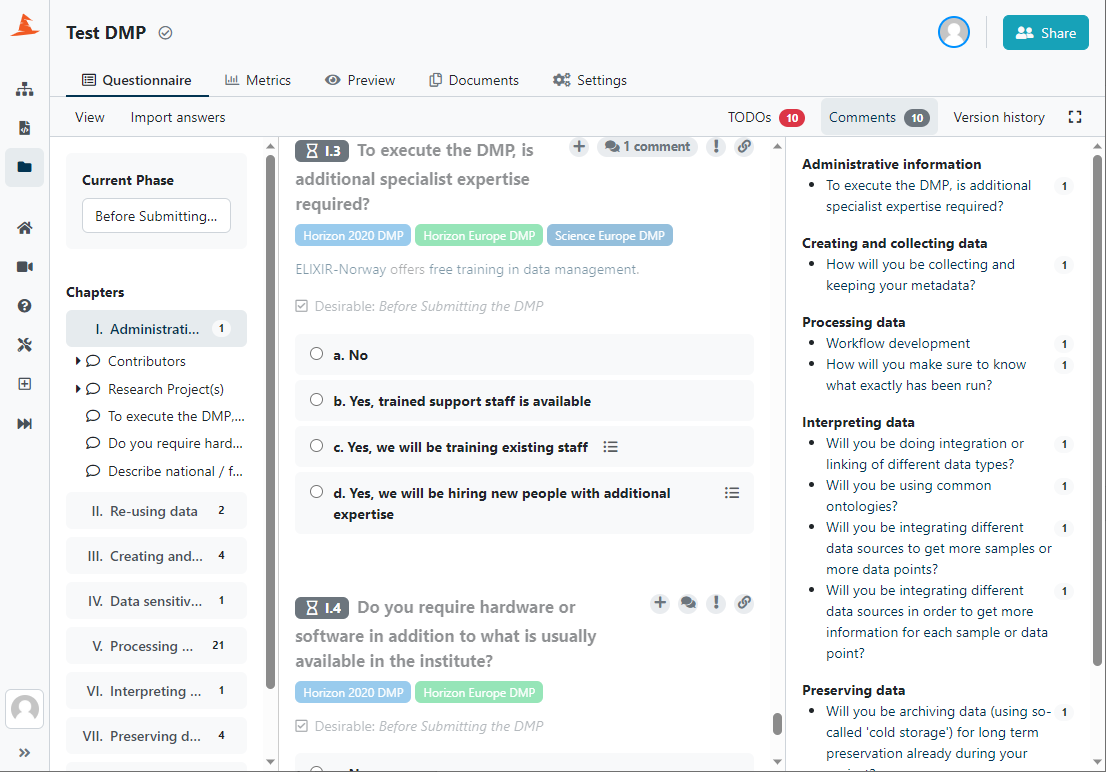
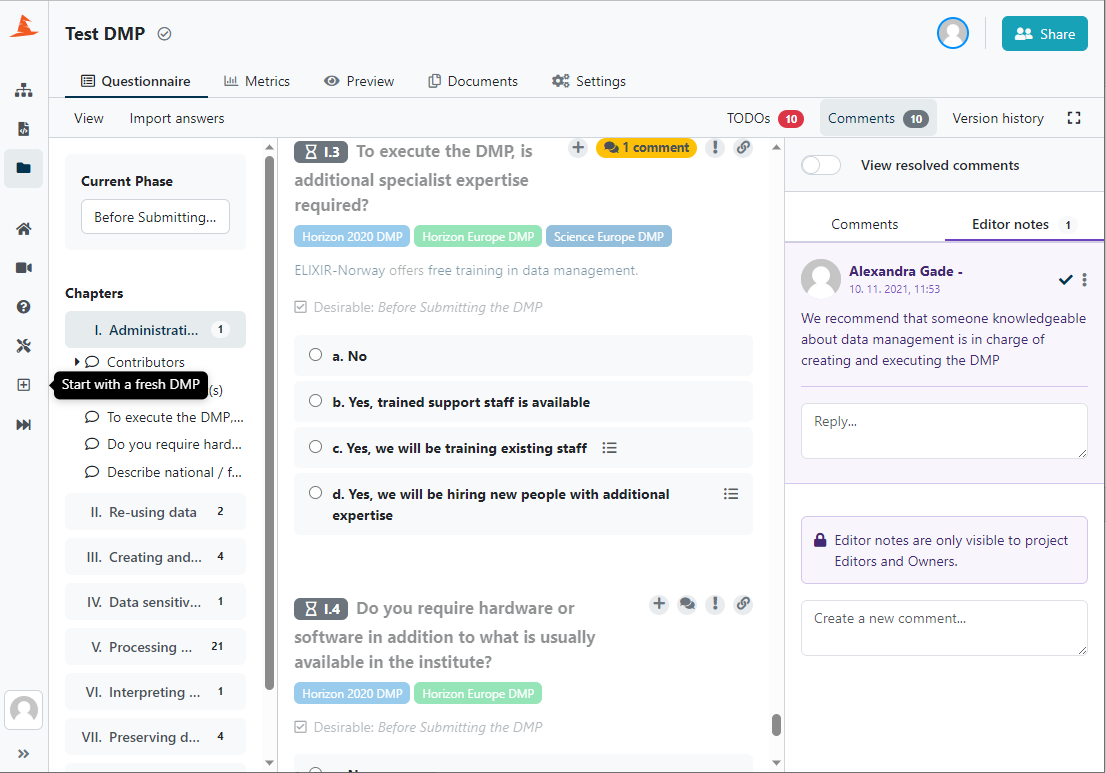
We have made Comments on particular items in the DMP where we feel guidance in addition to filling in the template is needed. Click on a particular comment in a section and then the Editors Notes tabs to see our recommendations. You can also create your own comments which will be visible to those you share the DMP with. Several people can work on a single DMP, and you will probably need to recruit those working on the project with specific areas of expertise to help you fill in relevant areas.
Metrics

The DMP is filled in under the 'Questionnaire' tab. Click the 'Metrics' tab to see how your DMP scores across several FAIR data categories. Many fields are pre-filled when you create a DMP from the exemplar template and the FAIR scores are already high. These are the recommended best practices, but the practices in your research group might be different. It is therefore crucial that you review all of the pre-filled fields in the DMP and make changes as needed to ensure the plan fits to your project needs. You can return to the 'Metrics' tab to see how your lab's data management practices score.
Preview Your DMP

The DMP is filled in under the 'Questionnaire' tab. Click the 'Preview' tab to see what your DMP looks like in a specific format. You will have to specify the DMP format you want to preview. Click the 'Go to settings' button to be redirected to the 'Settings' tab.

Choose the Default document template from the drop down menu. Several templates are available, including Horizon Europe DMP and machine actionable DMP (maDMP). Choose the Default document format for the preview; HTML, PDF, or Microsoft Word. Save your settings and you will be able to Preview your DMP in the selected format under the 'Preview' tab.
Export Your DMP

The DMP is filled in under the 'Questionnaire' tab. Once your DMP is completed, navigate to 'Documents' tab and click on the 'New document' button to create an exportable version.

You can export your DMP to one of several formats including Horizon Europe and machine actionable DMP (maDMP). Select your export format from the Document Template drop down menu.

You can export your DMP in one of several document types: HTML, PDF, or Microsoft Word. Click the 'Create' button to make your DMP.

Once your DMP is created, it will be visible in the 'Documents' tab. Click the three dots on the right to save your DMP to your computer.
You can export the same DMP to multiple formats, all of which will be available for download in the 'Documents' tab.
Further Guidance
Still have questions about using DSW to create a DMP? Please contact us directly at chembio@ncmm.uio.no.